
In the previous tutorial, we introduced a lightweight intranet penetration tool – frp, which basically meets most individuals’ basic needs.
frp is free, open-source, easy to configure, supports multiple protocols, has excellent performance and high security; the downside is that adding a new port requires modifying the configuration file and restarting the service. Additionally, it needs a cloud server with a public IP as a relay server, and it also consumes traffic in non-P2P mode.
Next, we will introduce another intranet penetration tool that does not require a public IP – zerotier.
zerotier
Zerotier is an intranet penetration and remote networking solution. Personal users can get 1 network and 20 hosts (IPs) for free. The default local area network traffic is networked through zerotier servers, resulting in high latency. Users can purchase cloud servers to build moon nodes to increase bandwidth and reduce latency.
- P2P direct connection priority: Adopting a decentralized communication architecture, 80% of traffic is transmitted through direct device connection, and the latency in the same region can be as low as 20ms. Based on the STUN/TURN protocol’s intelligent penetration algorithm, it can automatically identify network types (such as symmetric NAT, full cone NAT), and maintain a high connection success rate in complex network environments (up to 95% under full cone NAT).
- Globally covered network: The official has deployed distributed relay clusters on cloud platforms such as AWS and GCP, achieving high availability (SLA 99.9%) through Anycast DNS. Even if users are in an environment without a public IP (such as campus network, enterprise intranet), they can quickly access the virtual network.
- Self-built relay optimization: Domestic users can further improve speed by building a self-hosted Moon server (requiring a public IP). Tests show that after setting up a Moon with a free cloud server, the access latency can be reduced by more than 50%, and the bandwidth limit depends on the server configuration.
- Low resource usage: The client program is small in size (Windows installation package is about 15MB), and the memory usage on ARM devices such as Raspberry Pi is only 5-10MB, which is suitable for long-term operation of ZeroTier on IoT terminals.
- Full platform coverage: Supports mainstream operating systems such as Windows/macOS/Linux/Android/iOS, as well as router firmwares like OpenWrt and pfsense. The development team can quickly deploy containerized nodes of ZeroTier through Docker images.
- One-click deployment: You can quickly join the network through a 16-bit Network ID, and basic configuration can be completed within 5 minutes. Enterprise users can batch deploy clients through tools like Ansible to achieve automated operation and maintenance.
Installation
Zerotier official website: https://my.zerotier.com/
Zerotier client download: https://www.zerotier.com/download- Register and log in:

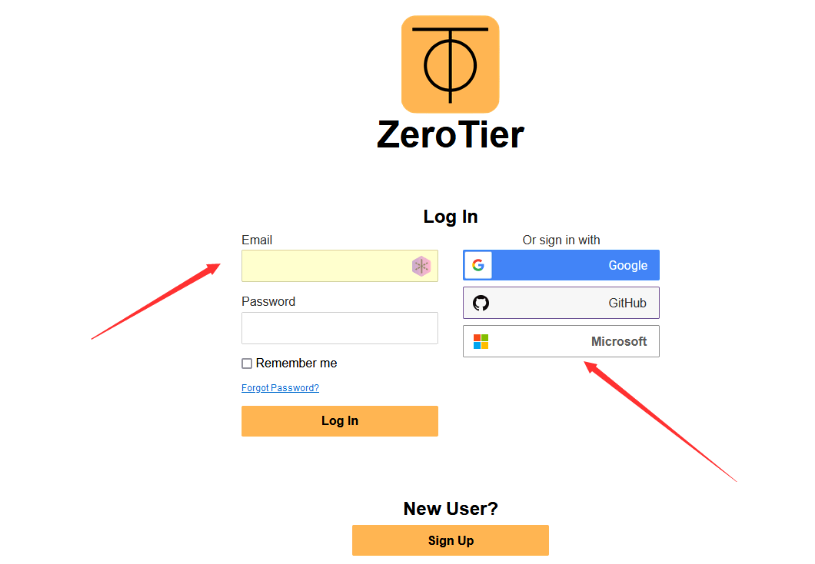
You can register with your own email or log in with a Microsoft account
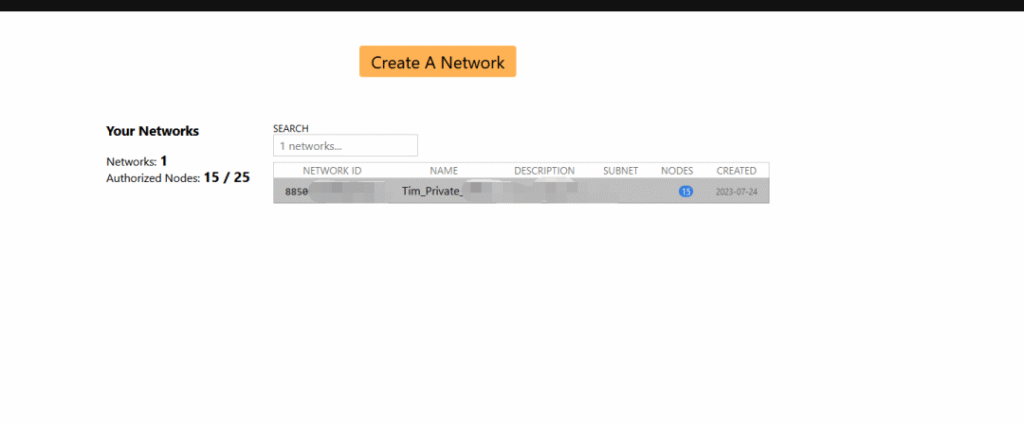
The above screen will be displayed after successful login. If you already have a network, it will be shown; if you are a newly registered user, click “Create A Network”.
Network settings and connection
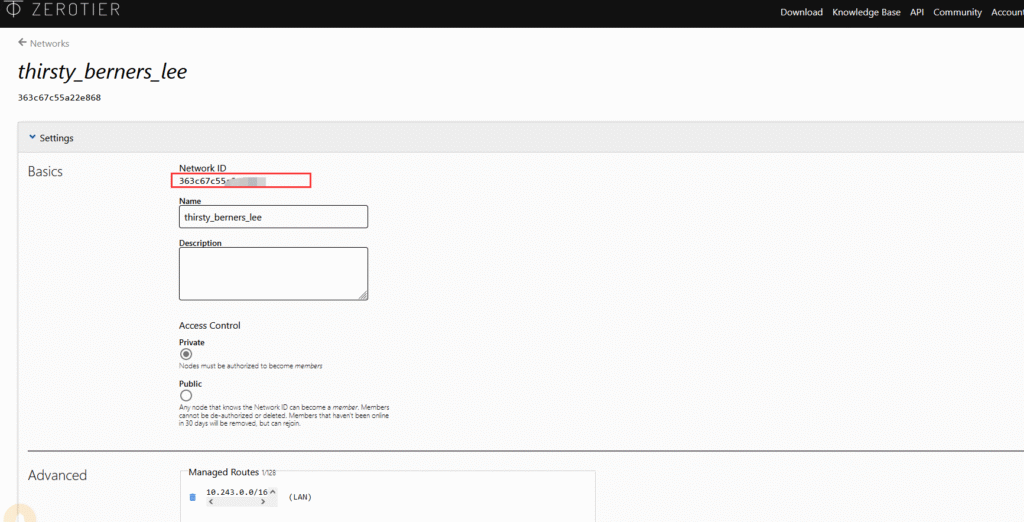
The red box shows your network ID. If “Access Control” below is “Private”, joining the network requires background verification; if it is “public”, no verification is needed, and you can join directly using the network ID. It is recommended to set it to “private” to enhance security.
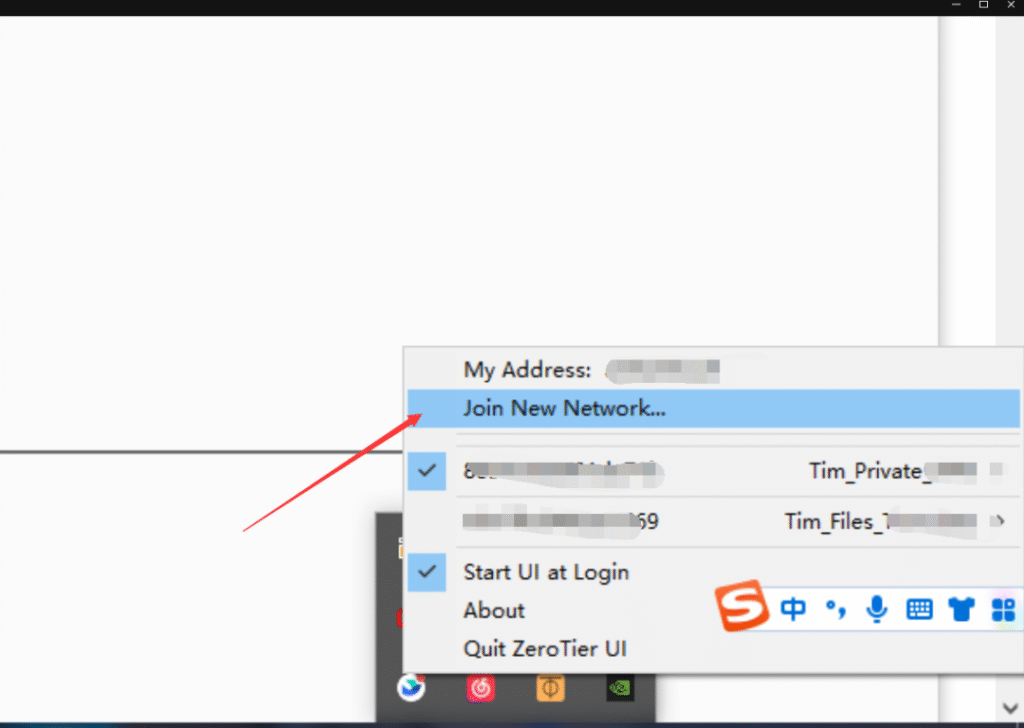
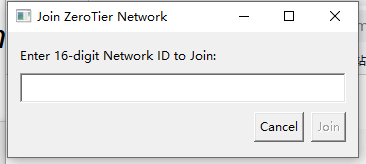
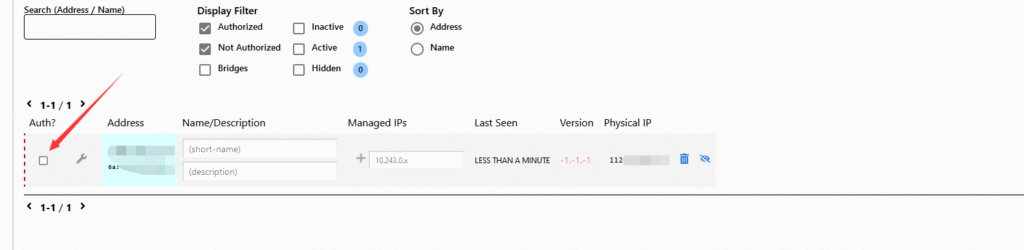
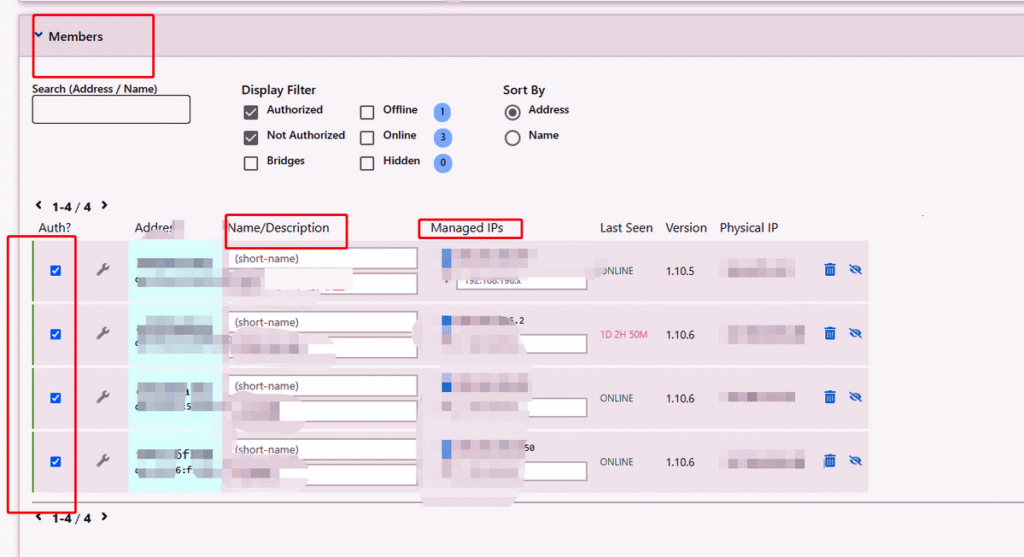
Click “Join New Network”, enter the network ID from the previous step, then confirm in the background to join the network. After successful authorization, you will join the network.
ping 10.243.0.2
--------------->
PING 10.243.0.2 (10.243.0.2) 56(84) bytes of data.
64 bytes from 10.243.0.2: icmp_seq=1 ttl=64 time=691 ms
64 bytes from 10.243.0.2: icmp_seq=2 ttl=64 time=690 ms
64 bytes from 10.243.0.2: icmp_seq=3 ttl=64 time=692 ms
64 bytes from 10.243.0.2: icmp_seq=4 ttl=64 time=692 ms
64 bytes from 10.243.0.2: icmp_seq=5 ttl=64 time694 ms
The latency is relatively high before setting up the moon node, and packet loss may even occur.
When using ZeroTier in some countries and regions, building a self-hosted Moon server (domestic relay node) is a core method to optimize the network experience, mainly due to the following key factors:
Breaking through domestic network environment restrictions and the geographical limitations of official servers
ZeroTier’s root servers (Planets) are located in California, USA. When Asian devices connect, they need to transmit data across the ocean, resulting in high latency (usually ≥150ms) and poor stability (prone to packet loss during peak hours). For example, the physical distance between a South Korean user and a US server exceeds 10,000 kilometers, and a one-way transmission alone takes about 50ms.
Setting up your own Moon relay node:
- Preparation:
A cloud server, preferably with higher bandwidth.
Install Linux on the cloud server, either Ubuntu or centOS.
Open the security group port UDP 9993.
- Installation steps:
① Download and execute the script
curl -s https://install.zerotier.com/ | sudo bash② Start and set to start on boot
systemctl start zerotier-one.servicesystemctl enable zerotier-one.service③ Join the network
zerotier-cli join 63xxxxxxxReplace 63xxxxxxx with your own network ID created above (NetworkId)
④ Enter the installation directory
cd /var/lib/zerotier-one/⑤ Generate node configuration
zerotier-idtool initmoon identity.public > moon.json⑥ Edit node configuration and set public IP
vi moon.json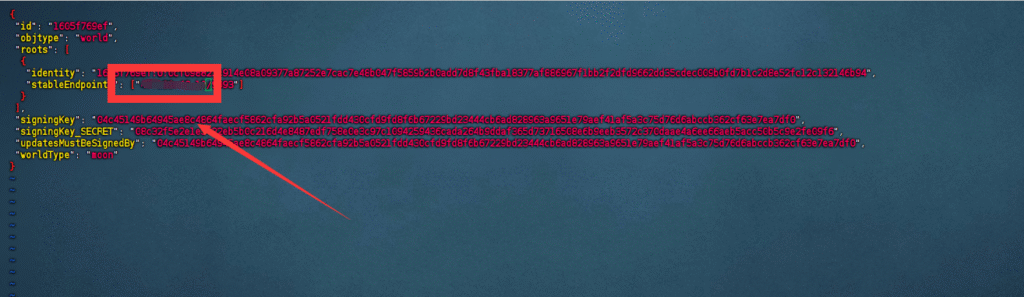
Fill in your cloud server’s IP here
⑦ Generate signature and check the generated file name
zerotier-idtool genmoon moon.jsonYou can use either ll or ls

⑧ Create a directory and move the configuration file (use your own generated configuration file name, this is just an example)
mkdir moons.d
mv 0000001605f769ef.moon moons.d/
⑨ Restart the service
systemctl restart zerotier-one10 Enter the moons.d directory and download the configuration file (it is recommended to use finalshell)
cd moons.dsz 0000001605f769ef.moon“
The above is the relay server configuration. The following is the client configuration, taking a Windows host as an example.
① Open the installation path of the ZeroTier Windows client, the default is
C:\ProgramData\ZeroTier\OneIf you can’t see it, you can enable the display of hidden folders.
② Create a folder named moon.d, which requires administrator privileges
moons.d③ Put the moon configuration file into moons.d
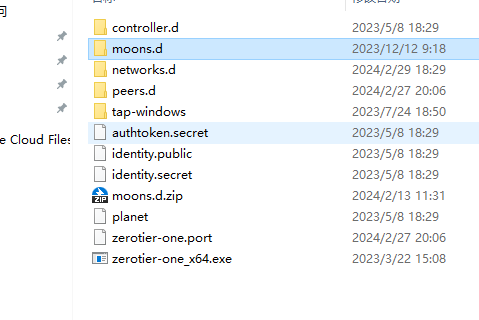

④ Press Win + R to open Run, and open service management
services.msc
Press the Z key on the keyboard to quickly locate and restart the service.
⑤ Open cmd as administrator and enter the zerotier installation path
cd C:\ProgramData\ZeroTier\One
Check the route
zerotier-cli listpeers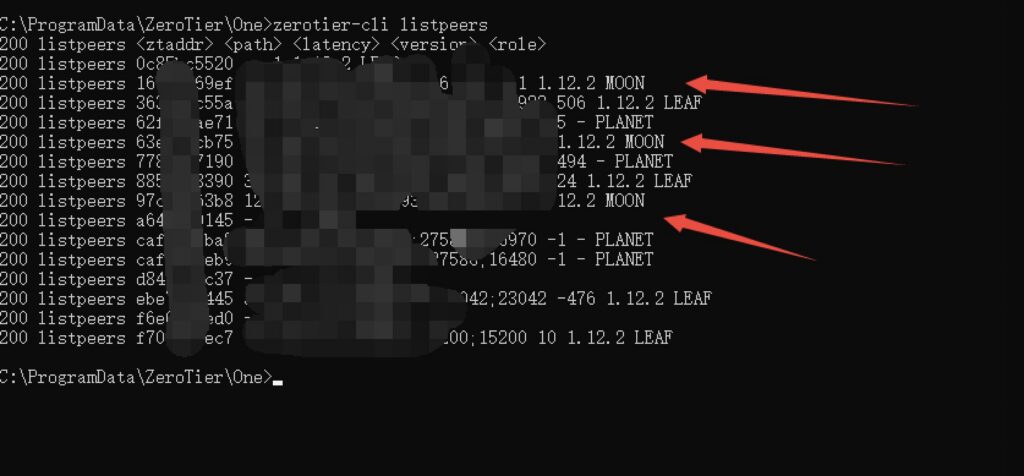
If you see the moon node, it means the configuration is successful. Remember to modify your network route after setup, and use your own route by default.
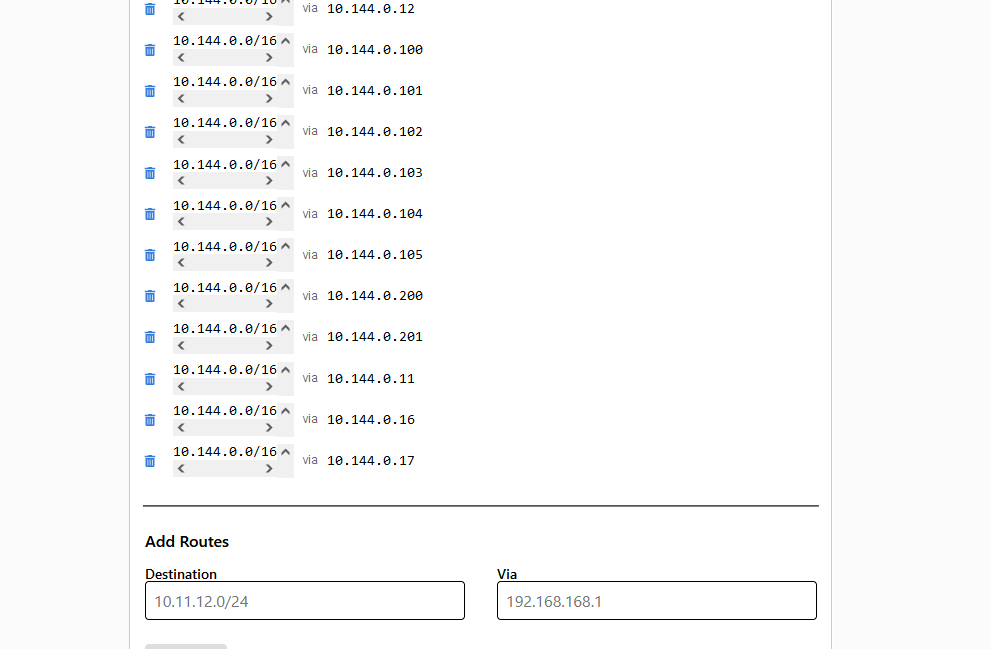
Instructions
①: 10.144.0.0/16 is your local area network segment, which depends on your actual segment.
②: Add all the local area network IPs of the hosts.
③: There is a delay in route activation, so ping several times.
④: Ping tips: The host should first ping the intranet IP of the relay public network, then ping the IPs of other hosts one by one; each host should do this once, and the speed will improve.
⑤: Delete the default route, otherwise it will still use the default route.
ping 10.243.0.5
--------------->
PING 10.243.0.2 (10.243.0.5) 56(84) bytes of data.
64 bytes from 10.243.0.5: icmp_seq=1 ttl=64 time=61 ms
64 bytes from 10.243.0.5: icmp_seq=2 ttl=64 time=90 ms
64 bytes from 10.243.0.5: icmp_seq=3 ttl=64 time=62 ms
64 bytes from 10.243.0.5: icmp_seq=4 ttl=64 time=92 ms
64 bytes from 10.243.0.5: icmp_seq=5 ttl=64 time69 ms
Notes
When using ZeroTier to build a virtual local area network, the following key points should be noted to ensure network security, stable operation and avoid potential risks:
Security Protection Points
- Strictly control network permissions
– Newly created networks are set to “Private” mode by default (requiring manual authorization for device access), avoiding “Public” mode (allowing any device to join automatically).
– In the ZeroTier background “Members” list, regularly clean up unused devices (click “Remove”), especially those of resigned employees or discarded devices.
– Bind static IPs to important devices (manually specified in the background “Managed IPs”) to facilitate restricting access scope through firewall rules. - Protect device identity and keys
– Each device’sidentity.secret(located in/var/lib/zerotier-one/orC:\ProgramData\ZeroTier\One\) is a unique identity credential. Leakage may lead to unauthorized access by others, so it must be kept strictly confidential.
– Before reinstalling the system, back up the device’sidentity.secretandidentity.publicfiles; otherwise, the device needs to be re-authorized. - Enhance account security
– Enable “2FA (Two-Factor Authentication)” for the ZeroTier official website account (configured in “Account Settings”) to prevent network tampering due to account theft.
– Avoid using weak passwords and change account passwords regularly. - Be vigilant about data transmission risks
– Although ZeroTier uses AES-256 encryption for transmission by default, additional encryption (such as through SSH tunnels, HTTPS) is recommended for sensitive scenarios (such as financial data).
– It is not recommended to transmit plaintext passwords or unencrypted private data through the virtual network, especially for connections across public networks.